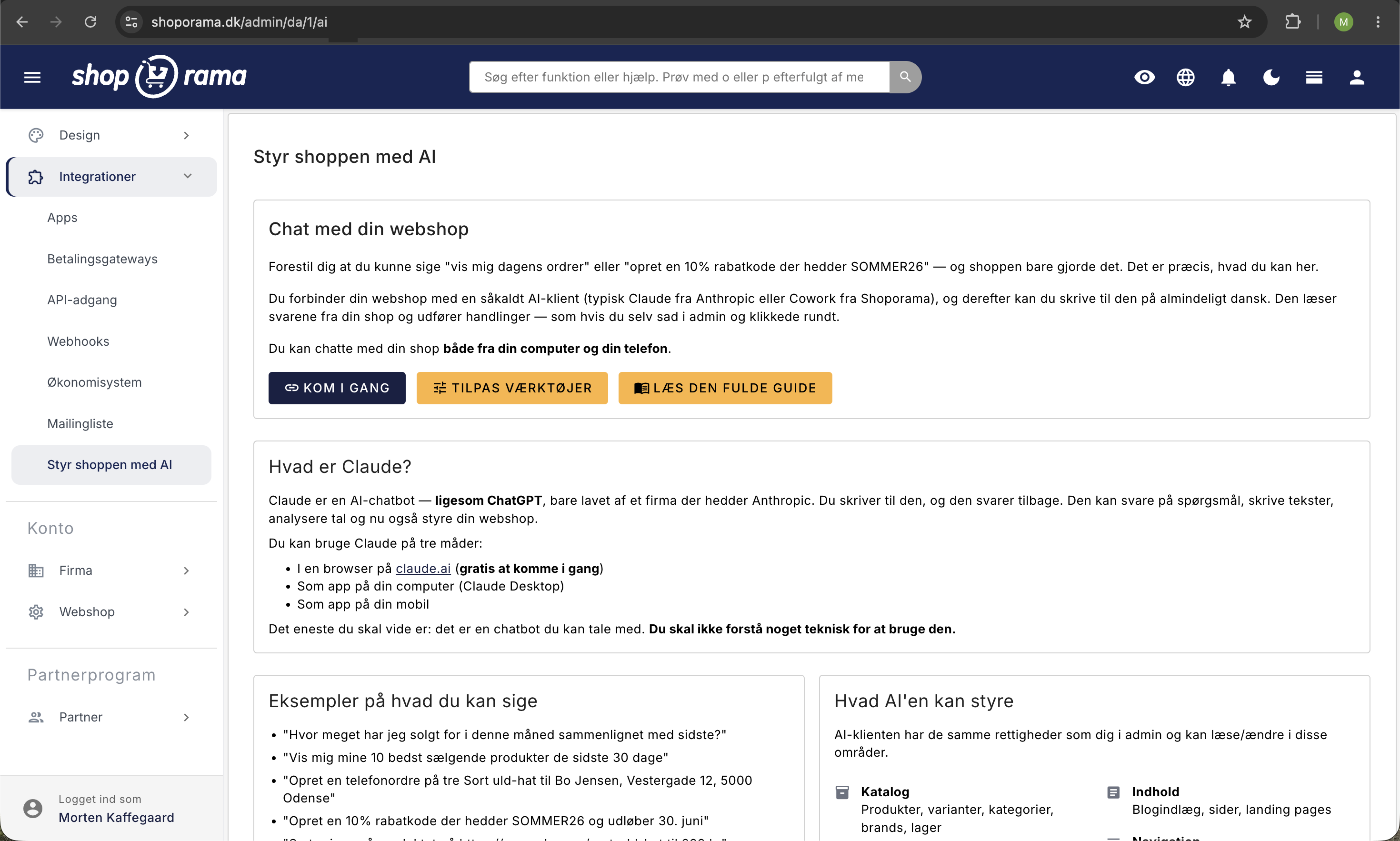
You may be familiar with ChatGPT. The new AI feature in Shoporama works the same way, but it can actually perform tasks in your store. You type in Danish what you’d like done, and the AI takes care of the rest. No clicking through menus. No long manuals.
This article shows you how to get started, what you can ask for, and how to stay in control.
In short: What is it, exactly?
Shoporama can now be integrated with Claude, an AI chatbot from the company Anthropic. Claude works much like ChatGPT. You open a chat, type what you want done, and Claude communicates with your shop and carries out the task. Shoporama is approved and listed in Claude’s connector library, so you can set up the connection with just a few clicks within Claude.
You can ask it to create products, run campaigns, pull statistics, adjust shipping rates, move inventory, write blog posts, find 404 errors, add modules to the homepage, and much more. Claude actually has over 200 different tools to work with in your store.
The best part is that you decide what the AI is allowed to do. It can never do anything you can’t do yourself in the admin panel, and for each area, you choose whether it can read and edit, read only, or have no access at all. And you can revoke its access at any time.
Note: This is not the same as the built-in AI assistant in the product editor, which only helps with writing product descriptions. Here, you manage the entire store via chat.
How to Get Started
It takes a few minutes. You’ll need a Claude account (you can create one for free at claude.ai) and your Shoporama admin login. Since Shoporama is in Claude’s connector library, there’s no URL to copy. Just find Shoporama and click “Connect.”
- Open Shoporama in Claude’s connector library. You can also find the library inside Claude under Customize → Connectors, where you click +, search for Shoporama, and click on it.
- Click Connect.
- Claude opens the Shoporama login page. Log in with your Shoporama account.
- Select which shop Claude is allowed to work in. If you want Claude to be able to make changes in the shop, select the “Full” access level. Click “Authorize Access.”
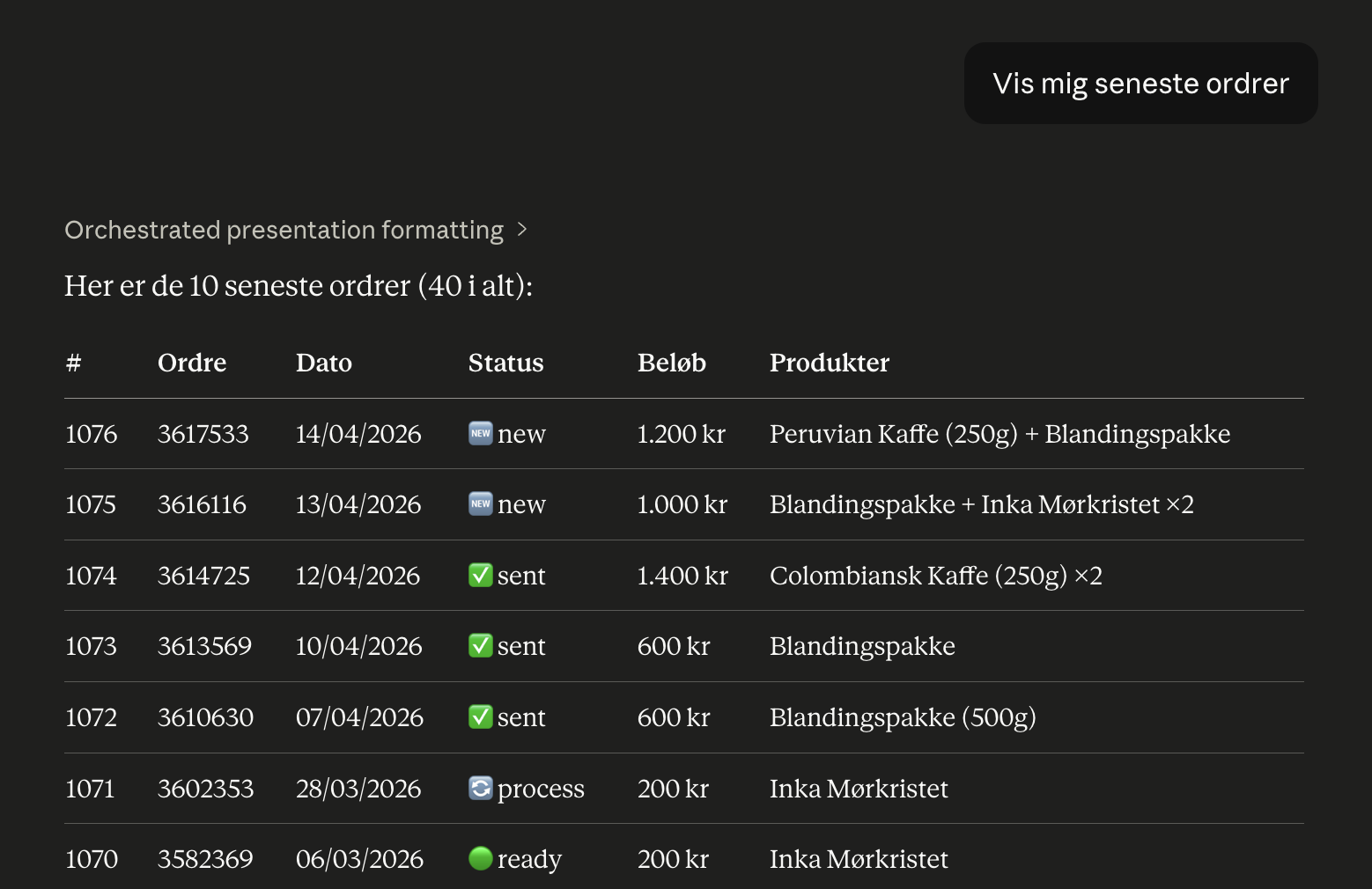
- You’re all set. Open a new chat and try: “Show me the 10 most recent orders.”
This works on claude.ai in the browser, in Claude Desktop, and in Claude’s mobile app. You can also connect directly from the app on your phone. Anthropic still considers this feature to be in beta. If you’ve connected from a computer, the connection will also work in the app.
Do you have multiple shops? The connection from the library covers one shop per Claude account. You connect the first shop from the library. You add each additional shop as a custom connector in Claude using the shop’s own MCP URL, which you’ll find in the admin panel under “Integrations” and “Manage the Shop with AI” when you click “Get Started.” On Claude’s free plan, you can have one custom connector. If you’re using Team or Enterprise, an owner must add the custom connector. Read how in the support article “Manage Your Store with AI.”
If you’ve already connected Shoporama with an MCP URL, you don’t need to do anything. The connection works as before.
What can you ask for?
The more specific you are, the better the answers. Here are examples grouped by category.
Sales and Statistics
- "How much have I sold this month compared to last month?"
- "Show me my 10 best-selling products over the last 30 days"
- "Which products have we sold the least of in the last quarter?"
- "What was my profit margin in August, and for which products is the cost price missing?"
- "Are there any orders from today?"
Claude uses the same data as Statistics in the admin panel and can compare results to the previous period or the same period last year. Learn more in Statistics and Reports with Claude.
Products and Categories
- "Set the price of the product at https://mineshop.dk/sort-uld-hat to 399 kr"
- "Create 5 new products based on this supplier PDF"
- "Create the product based on the three images I’ve attached"
- "Move all products in the 'Summer Sale' category to 'Outlet'"
- "Find all products without an image"
New products are created as hidden drafts so you can review them before customers see them. If you ask Claude to put them online right away, it will do so.
Promotions and Discounts
- "Create a 10% discount code called SOMMER26 that expires on June 30"
- "Create a promotion: Buy three items in the Coffee category and get the cheapest one free"
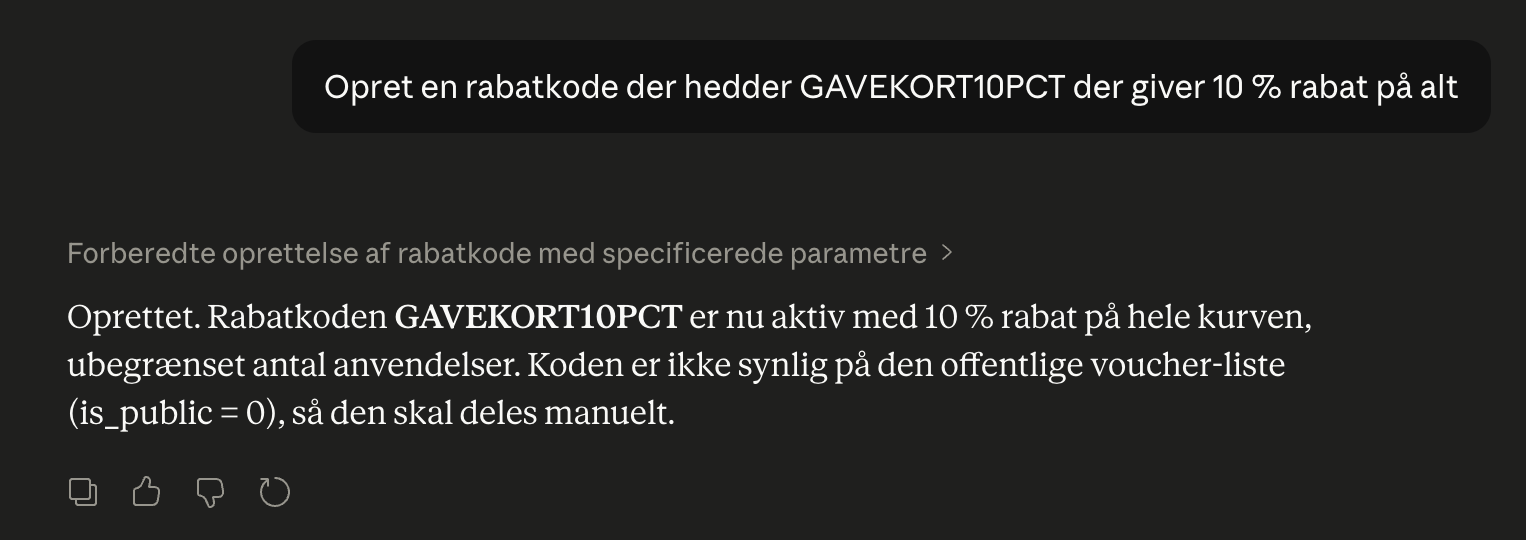
- "Create a gift card code for 500 kr that can only be used once"
Orders, Inventory, and Shipping
- "Mark all orders that are ready as 'shipped'"
- "Show the picking list with the orders waiting to be packed"
- "Move 20 black wool hats from the warehouse to the store"
- "Which items should I reorder so I have enough inventory for 30 days?"
- "Set shipping to Norway to 80 kr. with PostNord"
If Claude needs to change the status of multiple orders (up to 25 at a time), it can first show you what action this will trigger for each order, such as sending an email to the customer or processing the payment. Claude can also change selected online store settings, such as whether the search should include product numbers. It cannot change currency, domain, or payment settings.
Homepage and Design
- "Add a newsletter module at the bottom of the homepage"
- "Change the theme’s primary color to dark blue"
- "Add a hero banner with the text 'Spring Sale' at the top of the homepage"
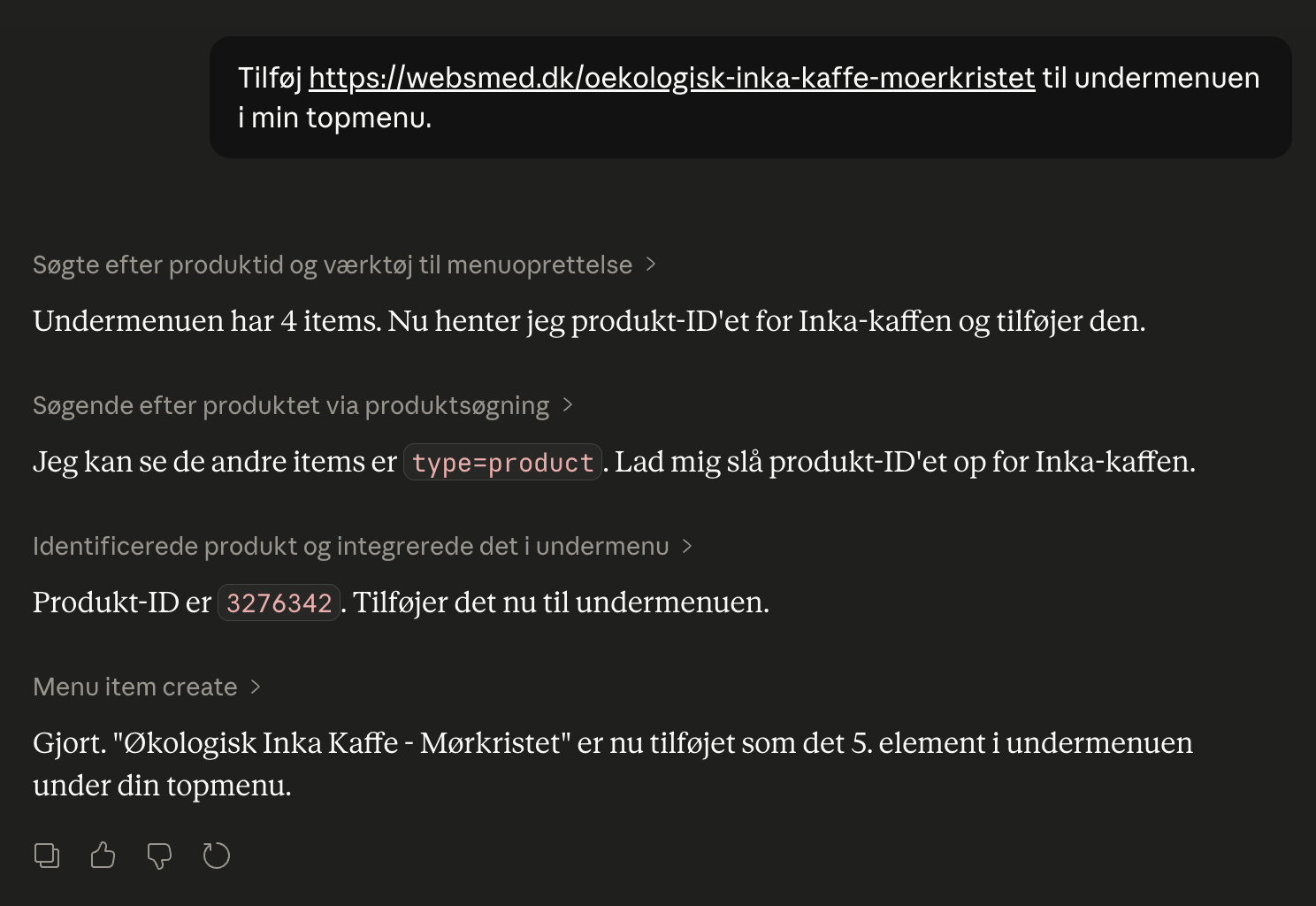
- "Add 'https://mineshop.dk/sort-uld-hat' to the submenu in my top menu"
Content
- "Write a blog post about our new Colombian coffee beans and publish it"
- "Translate our 'About Us' page into English"
- "Create a landing page for the spring sale featuring 5 of our best products"
SEO and Operations
- "Identify the 10 products with the lowest SEO scores and suggest what needs to be fixed"
- "Which keywords have returned 0 results in the last month?"
- "Which 404 errors should I set up redirects for?"
- "Generate a shipping label for order 1076"
Pre-written prompts
You don’t always have to type things out yourself. Shoporama provides Claude with five pre-written prompts: Weekly Report, Purchasing Suggestions, Month-End Closing, Discontinued Items, and Searches with No Results. They simply scan your store and offer suggestions. Nothing is changed until you ask for it yourself.
Help and documentation lookups
The AI can also look up Shoporama’s support articles, blog posts, and glossary to answer questions about how things work. So you don’t have to search for the right guide yourself.
- "How do I create a newsletter in Shoporama?"
- "What’s the difference between a campaign and a discount code?"
- "Find Shoporama’s guide to the Google Shopping feed"
- "Explain how date-based offers work"
- "What does 'contribution margin' mean?"
How to Write Effective Messages
Claude is an AI, so it’s good at understanding most of what you write. But a few simple rules yield significantly better results:
- Be specific with numbers and dates. Say "expires June 30" instead of "expires this summer." Say "10% off" instead of "a little off."
- Use URLs if you have them. If you’re referring to a product, a category, or a page, copy the URL into the chat. Claude will then look up what you mean on its own.
- Ask for confirmation before making major changes. For example: “Before you actually set up the campaign, just let me know what it will look like.” That way, you won’t have any surprises.
- One task at a time. At first. Once you get the hang of it, you can ask for multiple things in the same message.
- Claude doesn’t remember things across conversations. Each new chat starts from scratch. Important decisions (e.g., “We always offer free shipping on orders over 500 kr”) must be mentioned again or saved in the admin panel.
Security and Control
It’s understandable to think: “Should I really give an AI access to my online store?” Here’s what you should know:
- The AI can never do more than you can. It can’t do anything that your logged-in user can’t do themselves in the admin panel, and only users with the “Full Access” role can connect it. There are some things it simply can’t do, such as changing the currency, domain, or payment settings.
- You control access on a per-area basis. Under “Manage the Store with AI” and “Customize Tools,” you can choose for each area—such as Orders, Theme and CSS, or Statistics—between “Read and Edit,” “Read Only,” and “Off.” Read more in “Customize Which Tools Claude Can Use.”
- Extra Security: You Approve Major Changes. If you enable Extra Security, Claude won’t make changes that send emails to customers, transfer funds, permanently delete anything, or change multiple things at once. Instead, they’ll wait for you to approve them in the admin panel. Read more in “Extra Security: Approve Changes from Claude.”
- You choose which store it’s allowed to work in. If you have multiple stores on your account, the AI will only have access to the one you approve.
- Everything is logged. Every time the AI performs an action in your store, it’s recorded in a log that you can view under Integrations › Manage the Store with AI, where you click “View Audit Log.” You can see what happened, when it happened, and whether it was successful, rejected, or pending approval.
- Limit on the number of changes. Claude can make a maximum of 120 changes per minute and 3,000 per hour per connection, so a conversation that gets out of hand will be stopped in time.
- Text from customers is just data. When Claude reads order comments, reviews, or search terms written by customers and visitors, it is instructed to treat the text as data and never follow any instructions contained within it.
- You can revoke access at any time. Log in to the admin panel and remove the connection. The old access will then no longer work.
- Your data is sent to Anthropic (the company behind Claude) as part of the chat. It’s just like when you use ChatGPT or another AI chatbot. Check Anthropic’s privacy policy if you want to know more.
What if the AI makes a mistake?
It can happen. AIs are good, but not infallible. For example, it might misinterpret a product name and update the wrong product.
Three things can help:
- Ask it to confirm before making important changes (see the previous section), or turn on Extra Security so that changes with unintended consequences wait for your approval.
- Check the audit log if you’re unsure what happened.
- Undo or correct changes afterward. You can undo changes to theme settings, shipping rates, online store settings, and the stylesheet using the “Undo” button in the audit log, as long as no one has changed them again since then. Everything else can be corrected manually in the admin panel. Changes are not “locked” to the AI.
Frequently Asked Questions
Does it cost extra to use this?
The connection between Shoporama and Claude is free and included in your subscription. Claude itself has a free tier you can start with. If you use it a lot, you can upgrade to a paid Claude plan directly through Anthropic.
Does it work on the free Claude plan?
Yes. Shoporama from Claude’s connector library can be used on all Claude plans, including the free one. On the free plan, however, you can only have one custom connector, so you can connect a maximum of two shops: one from the library and one as a custom connector. If you’re using Claude on a Team or Enterprise plan, an owner of your Claude organization must first enable connectors.
Can I use an AI other than Claude?
Yes. Shoporama’s connection uses an open standard, so other AI clients that speak the same language (e.g., Cowork) can also be connected. Right now, Claude is the easiest to set up.
Can the AI accidentally delete my products?
Only if you ask it to. A product deleted via the AI goes to the trash, where you can restore it within 30 days. You can also ask Claude to restore it. Other deletions, such as categories, pages, or customers, cannot be undone. If you enable Extra Security, these actions will await your approval.
Is my customer data sent outside of Shoporama?
When you ask the AI to do something involving customer data (e.g., “show me yesterday’s orders”), the relevant information is sent to Claude as part of the conversation. Anthropic (the company behind Claude) does not, as a rule, use your chats to train future AI models. You should still familiarize yourself with Anthropic’s privacy policy before trusting it with sensitive data.
Can my employees use it too?
Yes, if they have the “Full Access” role in the shop. Each employee can connect their own Claude account to the shop, and each connection can be removed individually. Users with a different role—such as Employee, Marketing, or Developer—and users restricted to specific categories cannot use Claude because the connection applies across the entire store. If an employee is assigned a role other than “Full Access” after the connection has been established, their actions in Claude will be rejected from that point on. If you remove an employee from the store, all of their logins via “Log in with Shoporama”—i.e., Claude, the POS app, and the scanner app—will stop. Read more in Roles and Permissions.
Does it work on mobile?
Yes. You can connect Shoporama from the connector library directly in Claude’s mobile app (Anthropic still calls it beta). Once the connection is set up, it works automatically wherever you’re logged into your Claude account. However, additional stores connected as custom connectors must be added from a browser or Claude Desktop. You can also take a photo of a new item with your phone, attach it to the chat, and ask Claude to create the product using the photo. This requires you to grant permission once for “www.shoporama.dk” in Claude’s settings, which you can do at claude.ai in a browser or in Claude Desktop. Read more in “Images from Claude.”
Can I see what the AI has done in my store?
Yes. In the admin panel, go to Integrations › Manage the Shop with AI, and click View Audit Log. It lists all actions the AI has performed or attempted: what, when, and whether it succeeded, was rejected, or is pending approval. The log is stored for 90 days. Read more in the AI Audit Log.
How do I approve a change from Claude?
When Extra Security is enabled and Claude wants to make a change that requires approval, Claude will send you a link to the change in the chat. The “Manage the Store with AI ” menu item also displays a number when something is pending. You’ll see what Claude wants to do and what the implications are, and then choose “Approve” or “Reject.” A change that isn’t approved within 24 hours expires.
What should I do if the AI creates an order with incorrect prices?
Open the order in the admin panel and cancel or correct it manually, just like any other order. Write an internal note so your team knows what happened. Then ask the AI to place the order again with the correct prices.
Do I need to cancel my product text AI?
No. The built-in AI that writes product descriptions directly in the editor is still available and will continue to function as before. The new chat integration is a supplement, not a replacement.
Can I limit what the AI is allowed to do?
Yes. Under “Manage the Store with AI” and “Customize Tools, ” you can select for each area—such as Catalog, Orders, or Theme and CSS—whether Claude has “Read and Edit,” “Read Only,” or is “Off.” In “Read-only” mode, Claude can view data and answer questions, but cannot make any changes. The newest areas—Shipping, Operations, and Settings—start in “Read-only” mode (though Operations starts in “Off” mode if you’ve disabled Orders). On the same page, you can enable Extra Security so that changes with potential consequences—such as emails to customers, payments, and permanent deletions—will require your approval.
Give it a try
The fastest way to understand the value is to try it yourself. Find Shoporama in Claude’s connector library, click Connect, and log in with your Shoporama account. The first prompt you should try: How did sales go this month?
The second prompt when you’re ready: a specific task you’ve been putting off. Maybe it’s cleaning up 404 errors, setting up a campaign, or writing a blog post you never get around to.