Transfer orders to your accounting system without manual entry
Entering online store orders manually takes time, and every entry is an opportunity for an error. With Shoporama, orders are automatically transferred to your accounting software, including item lines, sales tax, shipping, discounts, and the customer. You can see right away for each order whether it has been transferred, and if something goes wrong, the explanation will be listed on the order.
All five integrations are apps that you install under Integrations → Apps, and they’re free in Shoporama. You only pay for the accounting software itself. Since April 2026, Billy has been called Shine Regnskab. We refer to it as Billy on this page because that’s the name most people are familiar with. Business Central is Microsoft’s ERP system, and its full name is Microsoft Dynamics 365 Business Central.
Compare e-conomic, Dinero, Uniconta, Billy, and Business Central
All five transfer orders and credit memos, and all display the order status with a label and a note. The differences lie in how the order is recorded in the accounting system, how sales tax and payments are posted, and what features you’ll get from the provider.
| e-conomic | Dinero | Uniconta | Billy (Shine Accounting) | Business Central | |
|---|---|---|---|---|---|
| Transferred as | Invoice or order | Invoice or financial document | Sales order | Invoice or financial document | Sales invoice or sales order |
| Transferred when the order is | Created, paid, or shipped | Paid or shipped | Created, paid, or shipped | Paid or shipped | Created, paid, or shipped |
| Draft or posted | You choose | You choose | Sales order—you invoice it yourself | You choose | You choose. You invoice sales orders yourself |
| VAT and accounts by zone (DK, EU, export) | ✓ VAT zone based on the customer’s country | ✓ Separate account per zone | ✓ Separate VAT code per zone | ✓ Separate account per zone | ✓ VAT group per line, VAT area per customer, and account per zone |
| OSS (sales to private individuals in other EU countries) | VAT zone per EU country. VAT is posted according to your setup in e-conomic | ✓ With two OSS accounts | – Note: Check the VAT code | – A draft entry is created (checkbox “Registered for OSS” is selected); you correct the VAT in Billy | – A draft entry is created with an explanation; you select the VAT groups in Business Central |
| Payment to account by payment method | – Payment terms for cards and for invoices/EAN | ✓ | – Payment is processed in Uniconta | ✓ | ✓ Custom payment journal with contra account per method |
| The online store’s invoice as a PDF attachment | – | ✓ In financial documents | – | ✓ On financial documents | ✓ On the sales invoice and credit memo |
| Credit memos | ✓ With negative lines | ✓ Linked to the invoice | ✓ Sales order with negative quantities | ✓ Linked to the invoice | ✓ Sales credit memo, offset against the invoice if it has not been paid |
| Customers are recognized | ✓ By phone number or customer number, if you choose that option | ✓ By email | ✓ By CVR number or email | ✓ By email | ✓ By email (companies also by CVR number), or as a regular customer for private individuals |
| Items in the accounting system | ✓ Item number and name are created | – The lines are text | ✓ Linked to the item number; missing items can be created as services | ✓ One item per account or per item number | ✓ Posted to your items in Business Central, if you wish. Does not create items |
| The amount is verified against the order | – | ✓ | ✓ | ✓ | ✓ |
| Inventory and Product Synchronization | – | – | – | – | – The inventory in Business Central tracks product sales, but nothing is synced to Shoporama |
| Labels and notes on the order | ✓ | ✓ | ✓ | ✓ | ✓ |
| Connection | API key from e-conomic | Log in with your Dinero account; valid for one year | Company ID, username, and password | API token from Billy | Consent from a Microsoft administrator and the app under Microsoft Entra programs in Business Central |
| Requires the following from the provider | An e-conomic subscription | Dinero Pro | API access, which may incur additional costs | The Plus or Complete subscription | Business Central Online |
| Price on Shoporama | Free | Free | Free | Free | Free |
| Read more | e-conomic | Dinero | Uniconta | Billy | Business Central |
✓ means the app handles it automatically. – means you handle it in the accounting software, or that the app doesn’t do it.
e-conomic
Suitable for: those who sell to both individuals and businesses, or to many countries, and want to manage customer groups, payment terms, and invoice layouts.
The e-conomic app transfers the order as an invoice or a sales order in e-conomic when the order is created, paid, or shipped. The invoice can be posted immediately or saved as a draft for you to review first. The VAT zone is determined based on the customer’s country, so sales in Denmark, sales to businesses in the EU, sales to private customers in other EU countries, and exports are handled separately. Private customers in other EU countries are assigned a VAT zone per country, and how the VAT is posted depends on your setup in e-conomic. There is also an option for Norwegian VOEC.
You decide how the customer is identified in e-conomic: by phone number, by the customer number from the online store, or with a single fixed account number for all orders. Private and business customers can each be assigned their own customer group, and orders paid by card, as well as orders paid by invoice or EAN, can each have their own payment terms and layout. Your item numbers are created automatically in e-conomic, and the order or cart number can be entered in the “Other Reference” field.
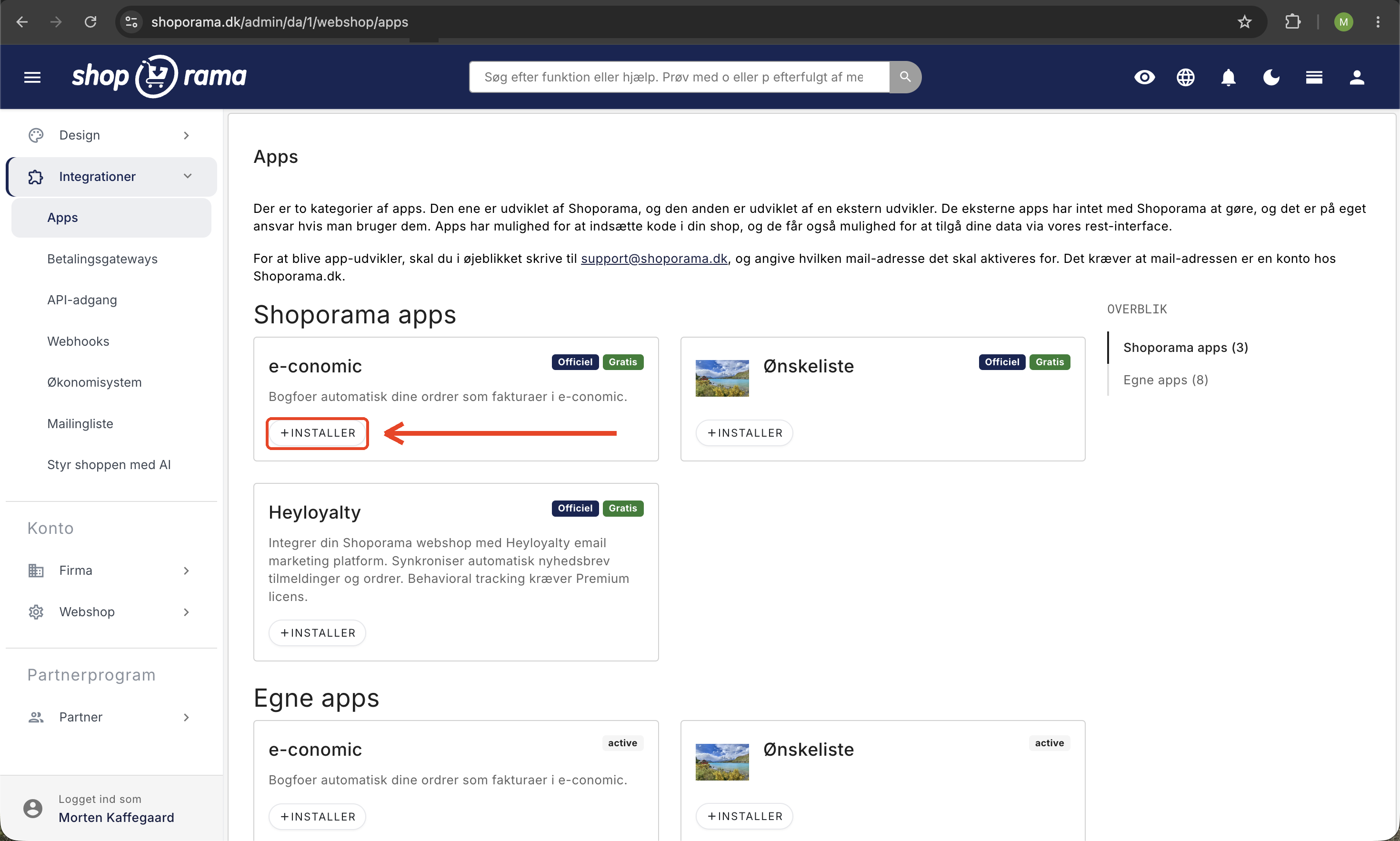
Read more in “Web Store with e-conomic,” and set up the app using the “Set Up e-conomic Integration” guide.
Dinero
Suitable for: small businesses that want sales and payments posted to the correct accounts without modifying the order.
The Dinero app transfers the order as an invoice in Dinero, where the customer is created as a contact, or as a financial document with the online store’s own invoice as a PDF. You select accounts for sales with and without VAT, sales to businesses in the EU, sales outside the EU, shipping, and OSS, and the payment is recorded in an account per payment method, e.g., card, MobilePay, and Klarna. Before an invoice is posted, the app compares the amount and VAT with the order. If there’s a discrepancy, the invoice remains as a draft, and a note on the order explains why.
You connect the app by logging in with your Dinero account, and the login remains valid for one year at a time. The company must have Dinero Pro. Credit memos are linked to the original invoice.

Read more in “Webshop with Dinero” and “Dinero Integration,” and set up the app using the “Set Up Dinero Integration” guide.
Uniconta
Suitable for: B2B online stores and businesses that invoice in Uniconta and want to review the order before it becomes an invoice.
The Uniconta app creates sales orders, not invoices. The order appears under Accounts Receivable, Sales, Sales Orders, and you invoice it yourself in Uniconta when you’re ready. The customer is identified by their CVR number or email address; otherwise, a new customer is created. Orders from private customers are imported with prices including sales tax, while business orders are imported without sales tax.
The order lines are linked to your item numbers in Uniconta, and if the item is in stock there, Uniconta automatically adjusts inventory when you invoice. The app logs in using your company ID and a Uniconta user account with write access, and uses only 2–4 API calls per order. API access itself may incur additional costs with Uniconta.
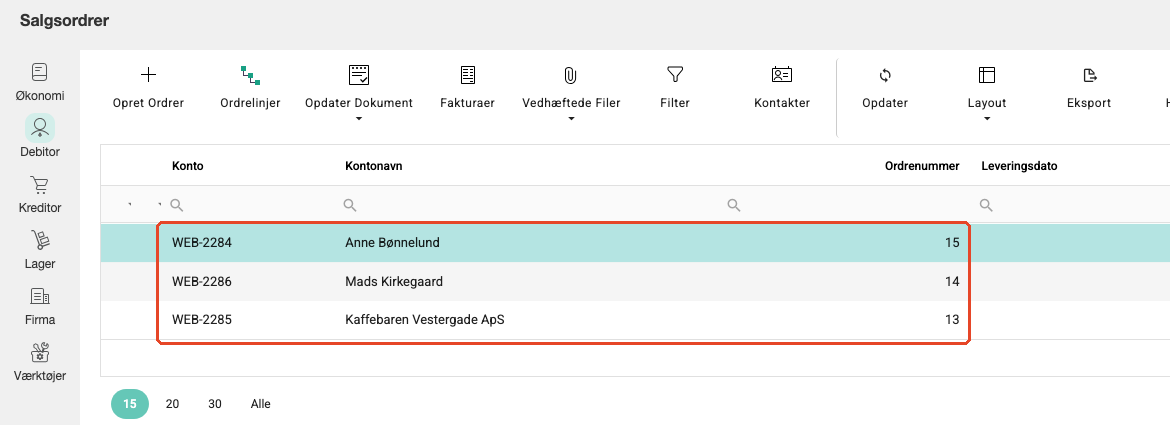
Read more in “Online Store with Uniconta,” “B2B Online Store with Uniconta,” and “Uniconta Integration,” and set up the app using the “Set Up Uniconta Integration” guide.
Billy (Shine Accounting)
Suitable for: small online stores that use Billy and want invoices, payments, and credit memos to be handled automatically.
In the app overview under Integrations → Apps, the app is named Billy (Shine Accounting). It transfers the order as an invoice in Billy or as a financial document in the cash book, along with the online store’s invoice as a PDF. The invoice is assigned the online store’s order number; the customer is identified by email; and companies are created using their CVR number and contact person.
Sales are posted to your accounts for sales with and without VAT, sales to businesses in the EU, sales outside the EU, and shipping, and payments are recorded in a separate account for each payment method. Credit memos are linked to the original invoice, even if the invoice was created using the old Billy integration. You connect the app using an API token that you create in Billy, and the company must have a Billy Plus or Complete subscription. Billy does not support OSS VAT rates. If you’re registered for OSS, check the “Registered for OSS” box; orders with VAT to private customers in other EU countries will then be created as drafts, which you can edit and approve in Billy.
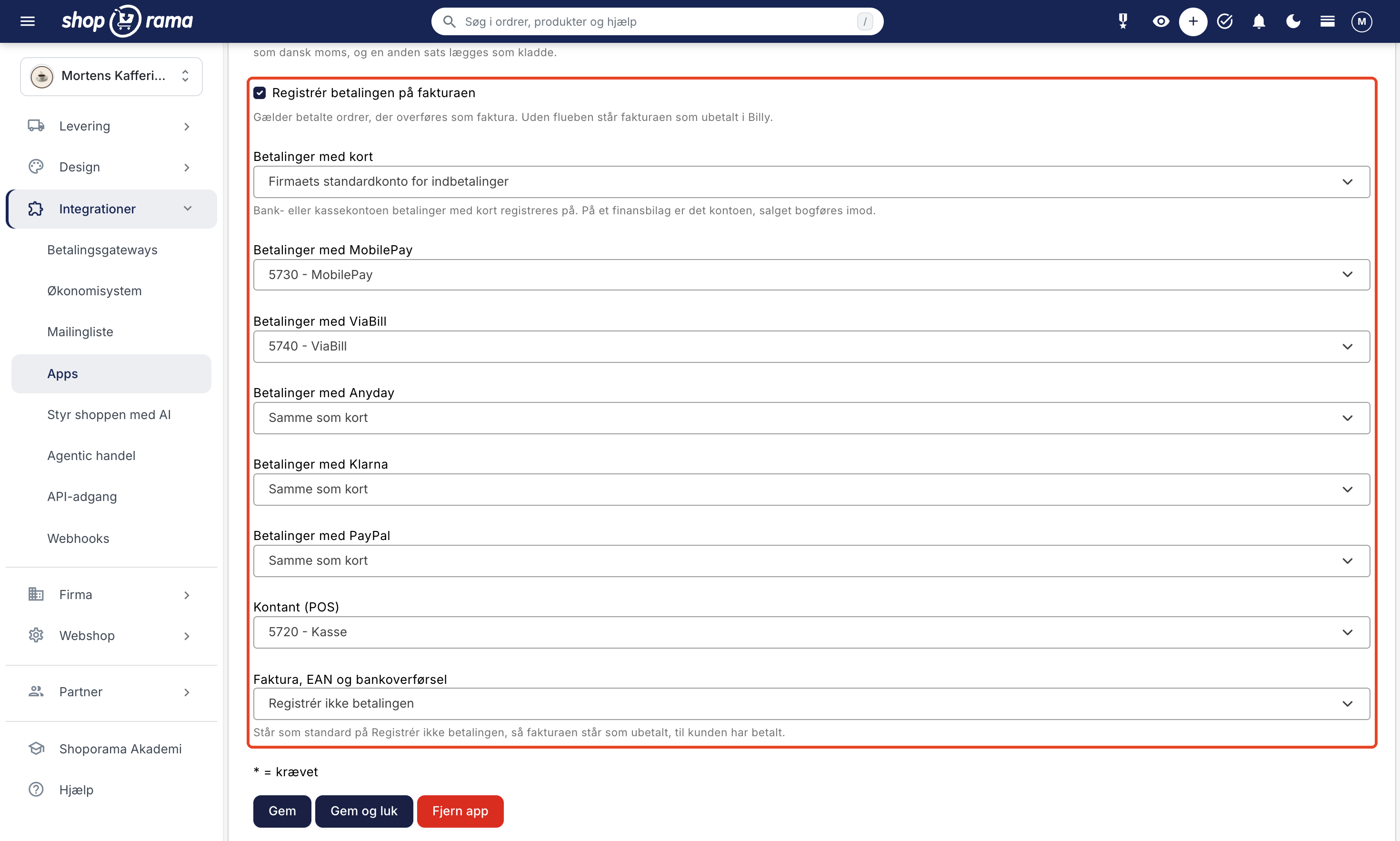
Read more in “Webshop with Billy” and “Billy Integration,” and set up the app using the guide for the Billy app.
Business Central
Suitable for: larger online stores, B2B companies, and companies that already manage finance, inventory, and purchasing in an ERP system. Business Central is Microsoft’s ERP system for small and medium-sized businesses and the successor to Navision.
In the app overview under Integrations → Apps, the app is named Microsoft Dynamics 365 Business Central. It transfers the order as a sales invoice that can be posted along with the payment immediately, or as a sales order that you fulfill and invoice in Business Central. You choose whether the order is transferred once it has been paid, shipped, or created. The order number appears in the “External Document No.” field, and the online store’s invoice can be attached as a PDF.
The customer can be identified by email or created as a customer with a CVR number and tax region, or you can group private customers under a single customer account. If you enable “Use Items in Business Central,” line items for the item are posted in Business Central when the item number is found there, so that the inventory in Business Central tracks the sale. The payment is recorded in the app’s own payment journals with a contra account for each payment method, and before the invoice is posted, the app compares the amount and VAT with the order. Credit memos are converted into sales credit notes.
The app works with Business Central Online, Microsoft’s cloud-based version. You connect it using the “Connect to Business Central” button, where an administrator in your Microsoft account grants consent, and then you set up the app under Microsoft Entra apps in Business Central. The app logs in as an application and does not use a user license.
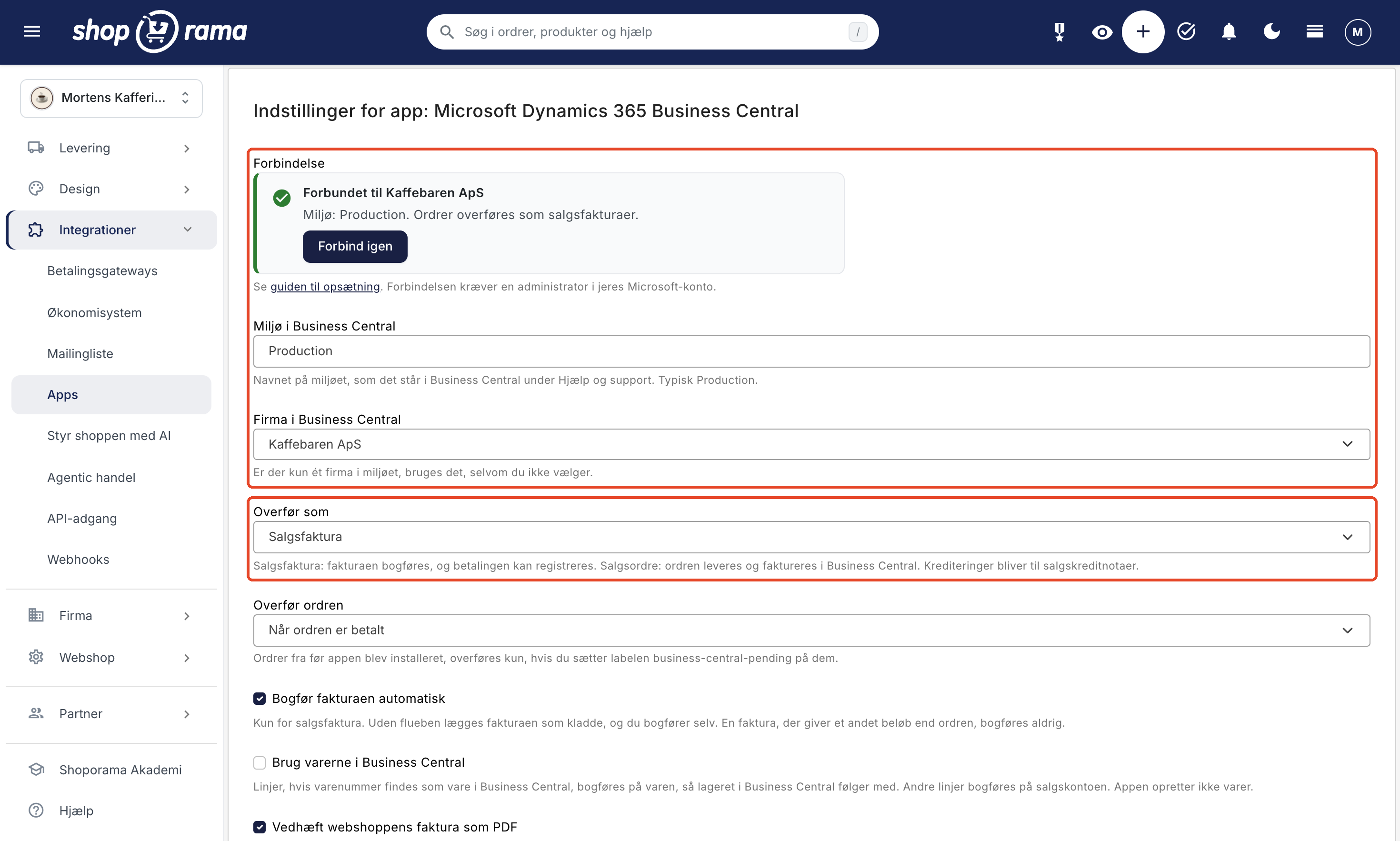
Read more in “Web Store with Business Central” and “Business Central Integration,” and set up the app using the “Set Up Business Central Integration” wizard. You can read about what Business Central is in the glossary.
How to Choose Accounting Software
The best advice is the simplest: choose the software that you or your bookkeeper already use. If you have a free choice, base your decision on the nature of your business.
Small online store, limited time for bookkeeping
Dinero or Billy. Both post sales to your accounts, record payments by payment method, and link credit memos to invoices. If you only want bookkeeping, both can generate financial documents using the online store’s invoice as a PDF.
Sales to businesses (B2B)
e-conomic, Uniconta, or Business Central. e-conomic offers customer groups, payment terms, and invoice layouts for orders paid by card and for orders invoiced via invoice or EAN. Uniconta creates sales orders with business prices excluding VAT, which you invoice yourself. The Business Central app always assigns companies their own customer account, and sales to businesses in the EU are assigned their own account and VAT region.
Multiple sales channels and inventory items in one ERP system
Business Central or Uniconta. If your business is already running on Business Central, the app can post the line items for your products so that inventory in Business Central tracks sales, and the order can also become a sales order that you fulfill from there. Uniconta links sales orders to your item numbers and deducts inventory when you invoice. With both solutions, inventory in the online store is still managed in Shoporama, and no data is pulled back.
Sales to private customers in other EU countries (OSS)
Dinero or e-conomic. Dinero posts the sales and foreign VAT to two OSS accounts. The e-conomic app sets up a VAT zone for each EU country, and VAT is posted according to your setup in e-conomic. With Uniconta, Billy, and Business Central, you adjust the VAT on the orders yourself in the accounting system. In the Billy app, check the “Registered for OSS” box so they are saved as drafts, and the Business Central app saves them as drafts with an explanation when the country’s VAT rate is not 25%.
You’ll see sales by item
in e-conomic, Uniconta, Billy, or Business Central. e-conomic automatically creates your item numbers, Uniconta links the lines to your items, and Billy does so when you enable “Create items by item number” in Billy. Business Central posts to your items when you enable “Use Items” in Business Central. Dinero only has text lines.
You want to approve everything before it’s posted
You can do this with all five. e-conomic, Dinero, Billy, and Business Central can save the invoice as a draft; Uniconta always creates sales orders that you invoice yourself; and Business Central can also create sales orders.
What is transferred automatically?
Regardless of which accounting program you choose, the same basic information from the order is carried over to the invoice or sales order:
- Line items with product name, variant, product number, quantity, and price
- VAT based on the customer’s country and whether the customer is an individual or a business
- Shipping as a separate line item
- Discount codes, promotional discounts, and points-based discounts as separate lines
- Customer name, address, email, and phone number; for businesses, the CVR and EAN numbers (for financial documents, no customer is created, and Business Central receives the CVR number but not the EAN number)
- The online store’s order number, so you can track the order
- Credits, both from the returns center and those you create on the order
- Orders in foreign currencies, such as euros, with the order’s currency listed on the invoice or sales order
In Dinero, Uniconta, Billy, and Business Central, orders from before you installed the app are not transferred automatically (the e-conomic app also transfers older orders, e.g., when they are shipped). If you want to include a specific order, add the app’s “pending” label to the order, e.g., “dinero-pending ” or “billy-pending.”
Save time and avoid errors
Manual bookkeeping isn’t just time-consuming. It also leads to errors: an incorrect amount, a missing shipping line, or sales tax posted to the wrong account. When orders are transferred automatically, you avoid having to enter everything twice, and your books are updated continuously rather than at the end of the month. This makes the biggest difference when you have many orders per day.
Each app assigns a label to the order once it’s been transferred—for example, “dinero-ok”—and a different one if something went wrong, such as “billy-failed,” along with a note explaining what happened. Then you can filter the order list and see at a glance if anything is missing. The Dinero, Uniconta, Billy, and Business Central apps also compare the amount in the accounting records with the order, so you know nothing has been left out along the way. Read more about order labels.
How to Get Started
- Go to Integrations → Apps in your Shoporama admin.
- Find your accounting program and click Install.
- Connect the app: enter the API key from e-conomic or the API token from Billy, log in with your Dinero user account, or enter your company ID, username, and password for Uniconta. For Business Central, click “Connect to Business Central,” where an administrator in your Microsoft account will grant consent, and then create the app under Microsoft Entra apps in Business Central.
- Select accounts, time period, and other settings, then click Save. Test with a single order and check the label on the order.
Setup guides: e-conomic, Dinero, Uniconta, Billy, and Business Central.
Frequently Asked Questions
Do the integrations cost anything?
Not in Shoporama. All five apps are free. You pay for your subscription through the accounting software: The Dinero app requires Dinero Pro, the Billy app requires Billy’s Plus or Complete subscription, and with Uniconta, API access may cost extra. The Business Central app requires that you have Business Central Online, but it does not use a user license in Business Central.
Can I review the invoices before they’re posted?
Yes. In e-conomic, leave “Post Automatically Transferred Invoices” turned off, and in Dinero and Billy, uncheck “Post Automatically” and “Approve and Post Automatically,” respectively. The invoice will then be saved as a draft that you can post yourself. In Business Central, uncheck the box next to “Post the invoice automatically,” or select “Sales Order” under “Post as.” In Dinero, Billy, and Business Central, a draft does not record the payment. The Uniconta app always creates sales orders, which you then invoice yourself.
What should I do if an order hasn’t been transferred?
Open the order in Shoporama. If it has a label such as “dinero-failed” or “uniconta-failed,” the explanation is in the note under “System Notes.” Correct the error and apply the app’s “pending” label to the order, such as “billy-pending.” The app will then transfer it again.
Are inventory and products synchronized with the accounting software?
No. None of the five apps send inventory figures to the accounting software or retrieve inventory, prices, or items. Inventory is managed in Shoporama. If you use Uniconta, Uniconta automatically deducts stock from inventory items when you invoice the sales order. If you use Business Central with “Use Items in Business Central,” the sale is posted to the item, so the inventory in Business Central is updated accordingly.
Can I use two accounting programs at the same time?
You shouldn’t, unless you intentionally want the same orders posted in two places. If you switch programs, deactivate the old one before activating the new one, and choose a transition date that you can explain to your accountant—for example, the 1st of the month. Orders that have already been transferred will remain in the old program.
I’m using the old Dinero or Billy integration. Should I switch?
Yes, we recommend it. The old integration under Integrations → Accounting System will continue to work, but it is no longer being developed. Install the app, set it up, and then set “Vendor” to “None” under “Financial System.” Until then, the app won’t transfer any orders so they aren’t duplicated. The settings won’t be transferred, so you’ll need to select accounts again in the app.
Does the Business Central app work with Navision?
No. The app works with Business Central Online, Microsoft’s cloud version. It cannot be connected to Business Central on-premises or to older Dynamics NAV and Navision installations. If you’re transitioning from Navision to Business Central Online, you can set up the app once the migration is complete. Learn more about Navision and the online store.
Do you have questions about the setup? Email us at support@shoporama.dk.